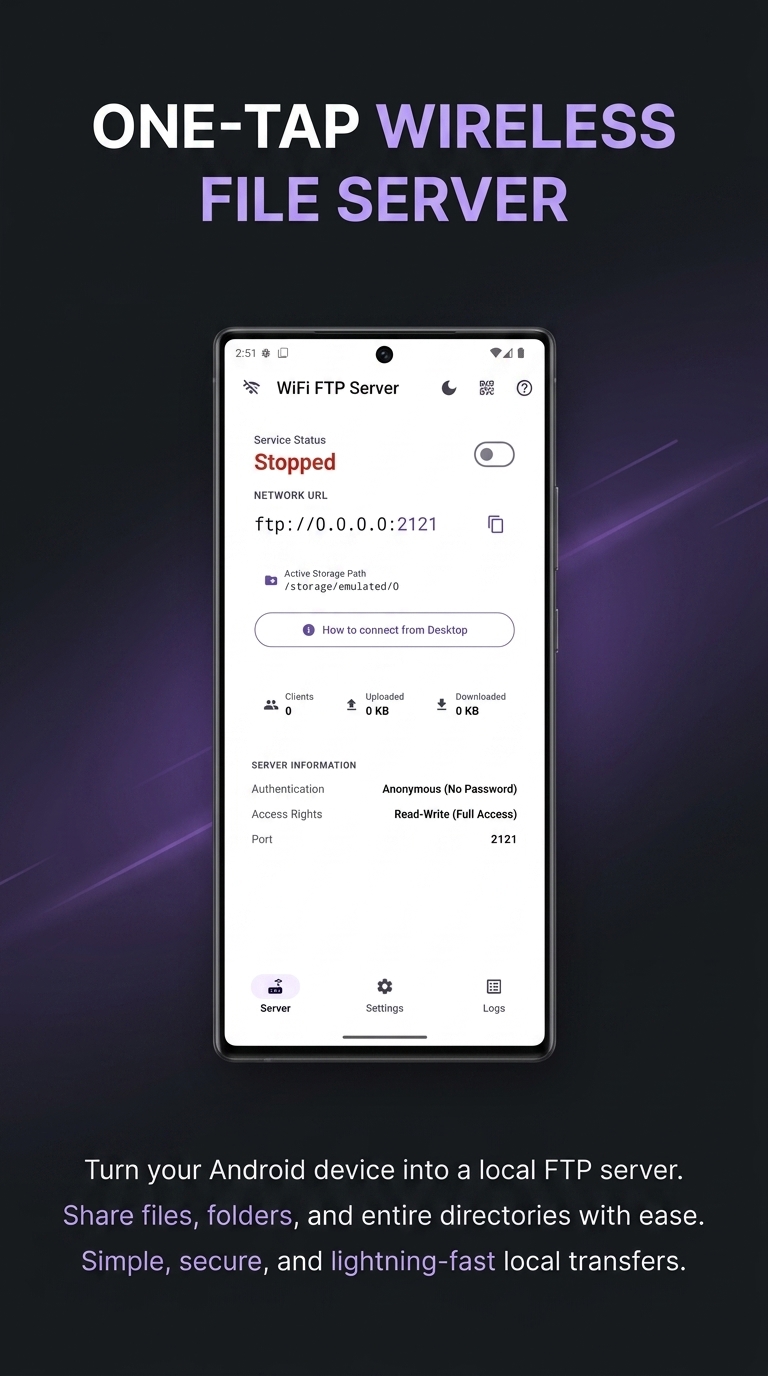
Turn your Android phone or tablet into a high-speed local FTP server. Access, transfer, and manage files seamlessly between your phone and any computer (Windows, Mac, Linux).
Built for speed, simplicity, and complete privacy over your local Wi-Fi network.
Transfer photos, HD videos, documents, and folders at maximum Wi-Fi network speeds without throttling or cable limits.
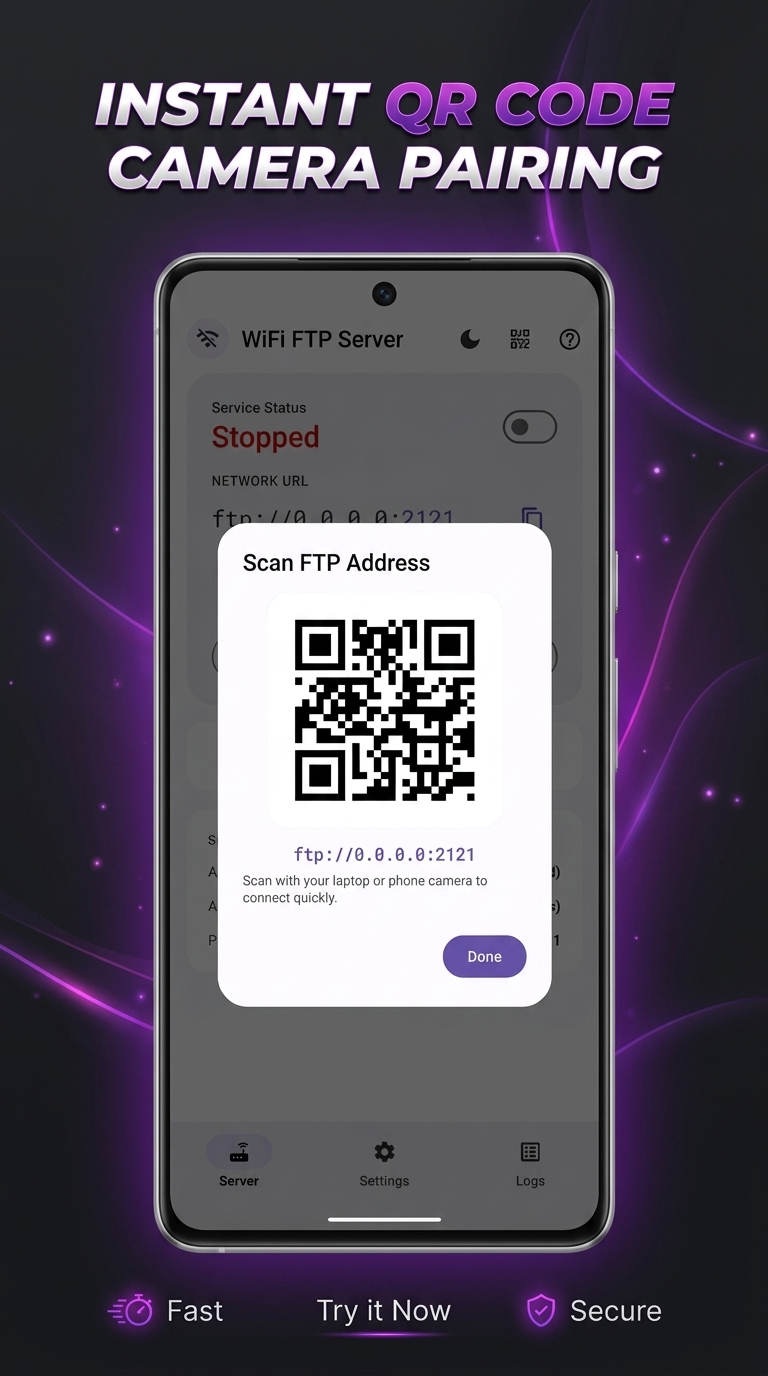
Scan the displayed QR code with your laptop or tablet camera to connect instantly without typing IP addresses.
Connect natively using Windows File Explorer, macOS Finder, Linux, Cyberduck, FileZilla, or any web browser.
Browse, manage, copy, move, and rename local device storage files directly inside the Android application.
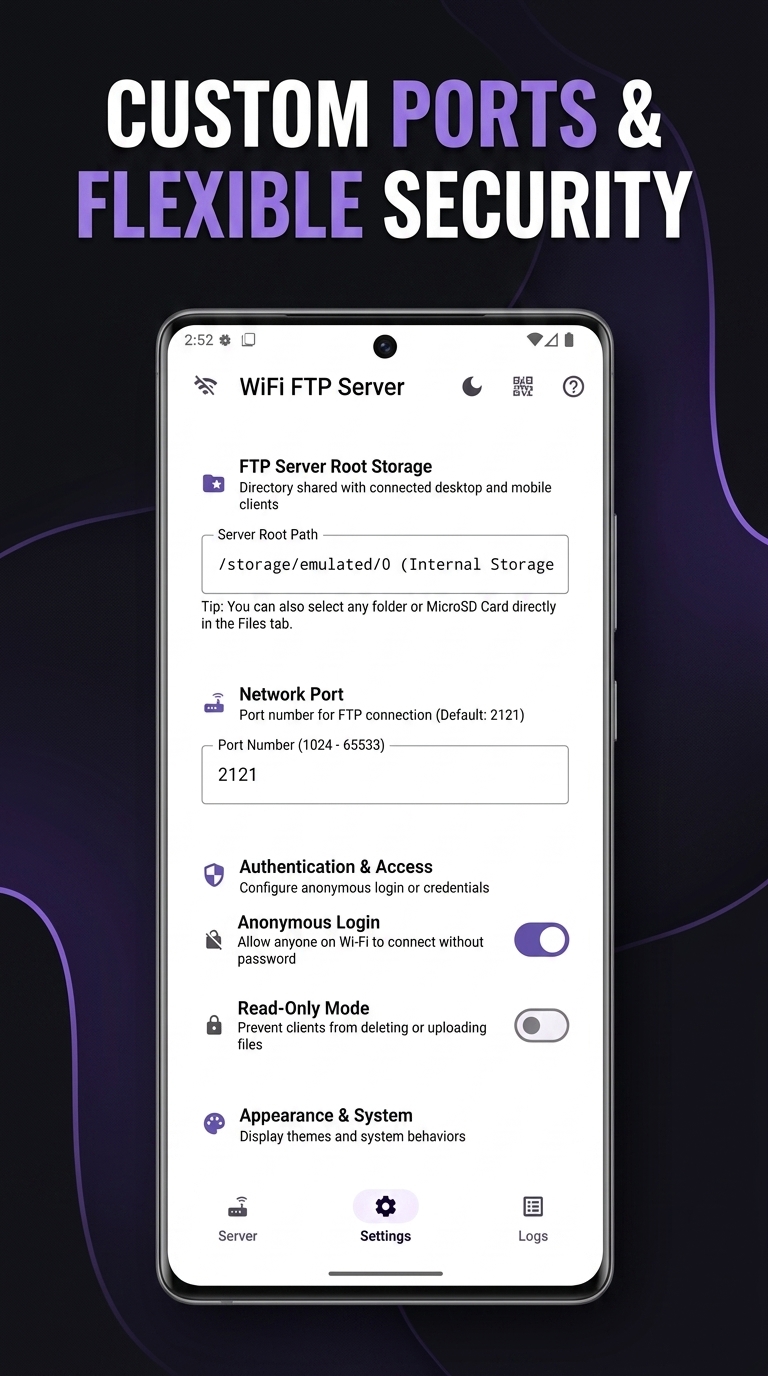
Set custom port numbers (e.g. 2121), configure password protection or anonymous access, and toggle read-only mode.
Operates strictly over your local network. Your files and personal data are never sent to third-party cloud servers.
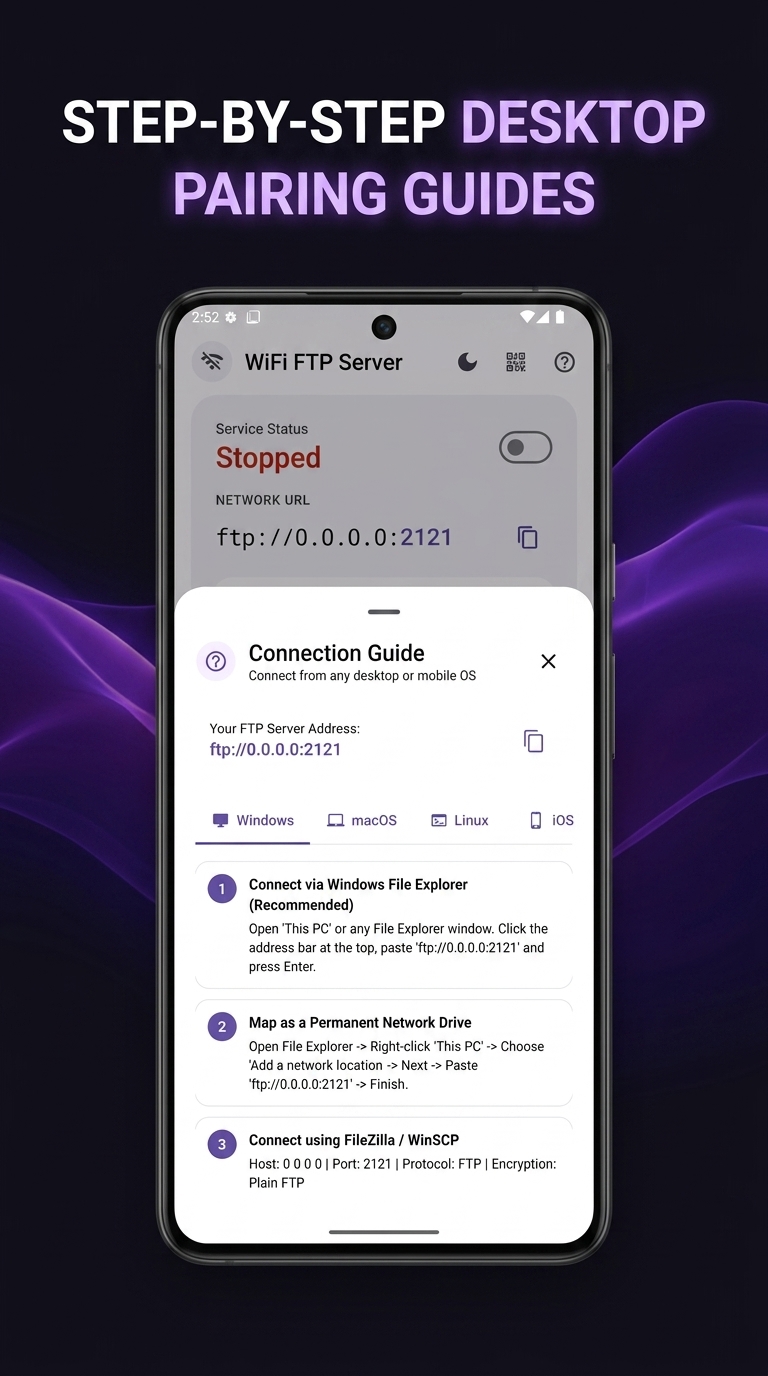
Follow these 3 simple steps to access your phone files from your computer.
Connect your phone and PC to the same Wi-Fi network. Tap START SERVER to get your FTP URL.
Press Win + E or open This PC. Click the address bar at the top, paste the server address and press Enter:
Your phone's internal storage and SD card folders will appear just like a local drive on your PC!
In Finder, click Go from the top menu bar and select Connect to Server... (or press Cmd + K).
Paste the displayed server address into the Server Address box:
Select Anonymous or enter your configured Username & Password, then click Connect.
Open Nautilus (GNOME Files), Dolphin (KDE), or your terminal.
In Nautilus, click + Other Locations and type the address into Connect to Server:
Set Host to 192.168.1.105 and Port to 2121.
Queue large folders, video batches, or full backups for rapid parallel FTP uploading and downloading.
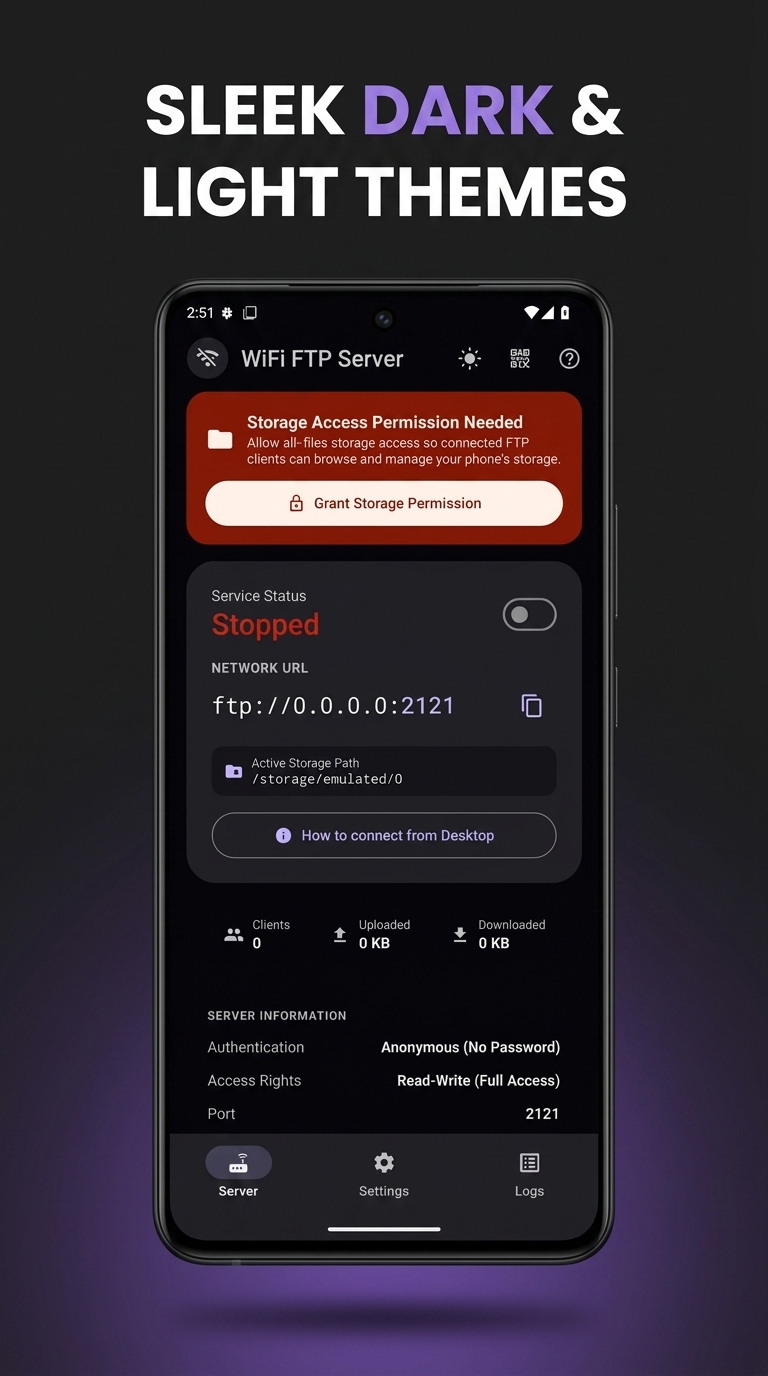
Clean Material 3 design system supporting both Light and Dark ambient themes.
No! WiFi FTP Server operates strictly over your local Wi-Fi router or mobile hotspot network. No internet data or cloud connection is consumed during transfers.
Yes, 100%. All transfers stay inside your local home or office Wi-Fi network. You can set password protection and custom ports to prevent unauthorized connections.
Yes. You can select your root directory path in the app settings to share Internal Storage, an external SD card, or a specific folder.
For security and battery conservation, the FTP server is stopped by default. Simply tap the START SERVER switch whenever you want to begin transferring files.
The default port is 2121, which works on all Android devices without requiring root
privileges. You can change this to any port between 1024 and 65535 in Settings.